Complex Load Tests With NBomber
With Bombardier we can run a load test against one single endpoint at a time. While this can help us to find performance bottlenecks on a page, it is not the most realistic load pattern for an application. If we want to know if our shopping card still works if hundreds of users hit the entry page, we need a different tool. I found in NBomber a tool that offers the needed flexibility and even better, we can keep writing our tests in C#.
NBomber requires a licence
NBomber is an open-source tool, but to use it for something more than a personal side project, you need a license. To run it locally on our machines, the license starts at $99 per user per month. There should soon be a cloud offering, that could be a worthwhile option to simulate large numbers of users that go beyond what we can run locally.
First steps with NBomber
We can create a new console project and add the two NuGet packages for NBomber with these commands:
dotnet new console -n MyLoadTest -lang "C#"
cd MyLoadTest

dotnet add package NBomber
dotnet add package NBomber.Http
We can now open the generated Program.cs file inside the MyLoadTest folder and add the code from the official documentation:
This code instantiates an HttpClient that we reuse throughout our performance tests.
The test we want to run goes inside the scenario block where we can use HttpClient to access our application – or NBomber.com in this example.
We can specify the load we want to use in our test as a method on the scenario. In the example we say skip the warmup phase and then use 100 requests per second for 30 seconds.
With this setup in place, we can register the scenario in the NBomberRunner and run the test with this command:
dotnet run -c Release

  _   _   ____                        _                       ____
 | \ | | | __ )    ___    _ __ ___   | |__     ___   _ __    | ___|
 |  \| | |  _ \   / _ \  | '_ ` _ \  | '_ \   / _ \ | '__|   |___ \
 | |\  | | |_) | | (_) | | | | | | | | |_) | |  __/ | |       ___) |
 |_| \_| |____/   \___/  |_| |_| |_| |_.__/   \___| |_|      |____/

21:14:45 [INF] NBomber "5.8.2" started a new session: "2025-02-12_22.14.76_session_c0ad3819"
Reporting
After the performance test is over, it may take a while to collect all data before we get an output like this one in the console:

While this is a nice overview, NBomber offers us a more detailed HTML report. We can find it in the reports folder. If we open the report, we can expand the Scenarios section and find our http_scenario. The most interesting part is the chart, which shows us the throughput and the latency:

The graphs are interactive, allowing us to hover over interesting parts to see the exact values:

Another interesting part is in the .Net Process Metrics section. Here we can see the memory metrics and the queue-length of the thread pool:
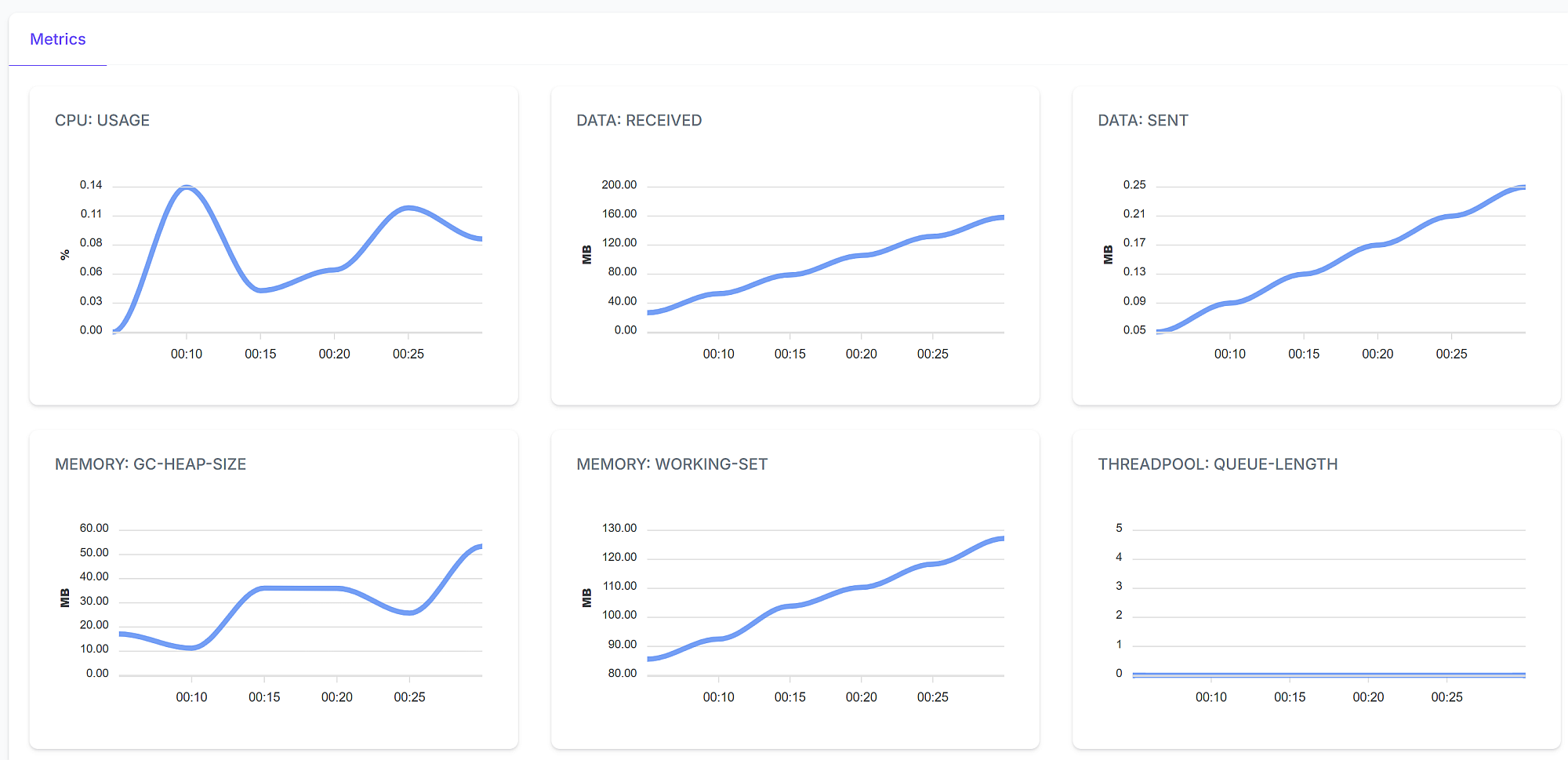
If we run more realistic tests and let the application run on the same machine, we can spot here if the memory management works or not. Keep an eye on this part to spot problems that hint at a memory leak.
Variations in the load
A big benefit of NBomber is that we can tweak the tests as much as we like. A helpful dial we have is the number of requests per second. We can keep it constant as we did in the example above, or we can introduce variations.
If we want to start slowly and grow to 100 requests, keep the pace for 20 seconds and then slowly reduce to 50 requests per second, we can use this code:
If we run this scenario configuration, we get a throughput report that looks like this:
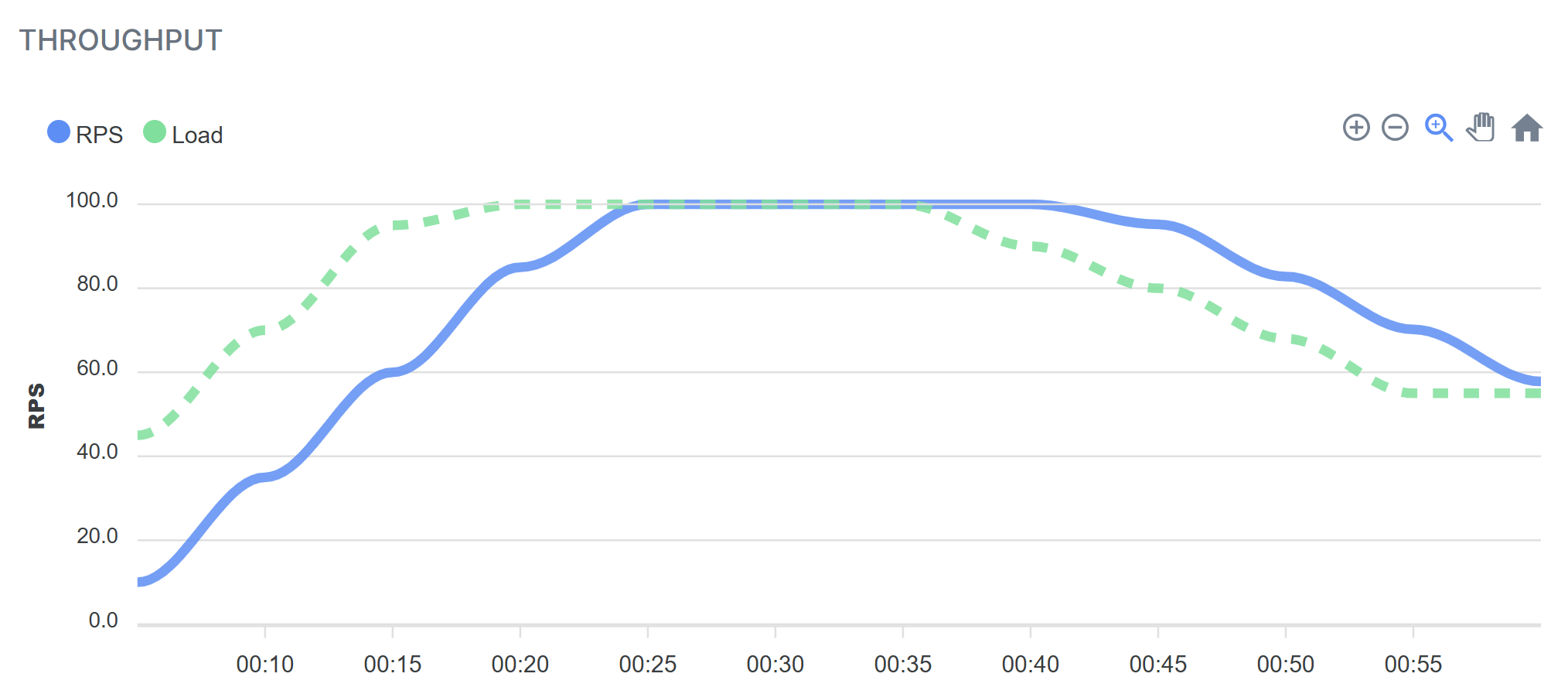
We can see that the effectively registered requests per second (blue line) lags a bit behind the values that we defined (green line). That is the case when we increase the requests as well as when we reduce them. Keep that in mind for your tests, especially if you want to have an exact duration under maximum load.
Run scenarios in parallel
An interesting question for load tests is what happens with one feature if the web application gets hammered with requests on a different page. With NBomber we can answer this question. All we need to do is to create a second scenario and register both scenarios with the NBomberRunner:
The new report has two entries in the Scenarios section, otherwise everything stays the same.
As I was writing this blog post, there was no option to run the scenarios in sequence. There is an issue on GitHub, but so far, the issue moves from one milestone to another.
More complex scenarios
Since we can use C# to define the scenarios for NBomber, we can use everything that runs on .Net inside our scenarios. If we want to use a different library to make the HTTP calls, we can replace HttpClient. If we want to log in to our application, we can use HttpClient to request the login form, send the credentials and use the returned token with all the following requests. There is no limit to the flexibility we have.
If you need some ideas on how to make more realistic tests and how to implement them, I suggest you check the official blog to get some ideas. I found these 3 posts especially useful to get an understanding of the possibilities:
- Load Testing HTTP API on C# with NBomber
- NBomber v5.7.0 — Timescale, WebBrowser
- NBomber v5.8.0 - Scenario Weight, Runtime Thresholds
Next
With the flexibility of NBomber, we can test our application in any imaginable way. No matter the load pattern or the test itself, we get great flexibility while we can stay on the programming language we are used to. These upsides make the price we must pay for a license a worthwhile investment.
Next week we go back to the internals of our application and try to find the hot path.