Claude Code Basics: Improve Your Workflow and Save Tokens
Last week we jumped right into the command line interface of Claude Code and vibe coded a tiny application. While this works with larger applications, it is not the best use of our tokens. If we do not want to explain everything every time we come back to Claude, we need a bit more structure. That will help us with fixing wrong technology choices as well. Let us see how easy it is to get more out of Claude Code.
Set up your CLAUDE.md file
The CLAUDE.md file is a special document that Claude automatically reads to get context on our project. It goes in the top directory of our project and stores all important things about our project. We can run the
command to generate a starter CLAUDE.md file based on the code in our existing project.
If we only have an empty folder, then /init will not have anything to work with. Save the time and either wait till you have code or start with a minimal Markdown file and add the technology stack you want to use.
As our project grows, so will our CLAUDE.md file. Make sure that you put all the project-specific information in the CLAUDE.md file in the project. There is a second CLAUDE.md file in the user home directory (C:\Users\USERNAME\.claude\CLAUDE.md) that holds things for all projects on the computer. In this global file we only put things that all projects need – otherwise we waste context with things that are not relevant.
Plan before you code
For anything larger than our little say_no application from last week or a bugfix, it is best to plan the application before jumping right into writing code. That way we can save a lot of rework and get faster to the application we want. It does not help when we let Claude write code right away only to figure out that it used the wrong programming language and created something we did not want.
We can reach the planning mode with this command:
The plan mode is read-only and allows us to tell Claude what we want. We can use this shortcut or add a description to the plan command:
The more context we deliver, the more useful can be the first response we get from Claude. Depending on our input, Claude may show us a few dialogues to enter more details or already offer us an implementable idea. We can accept the plan or add more details until it does what it should.
Manage context actively
The longer our session goes, the more it fills up the context. The larger our context, the more tokens it needs to interact with Claude, and the worse the results we get. We can actively monitor the current context with this command:
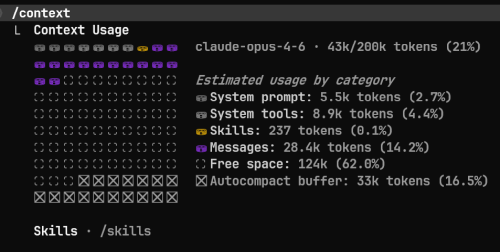
It is up to us to make sure we keep the context as low as possible. If we end a task and the next task is independent of our current work, we can use this command to clear our session and start with a new one:
If we cannot interrupt our work, we can use this command to get a summary of our work and reduce our context size:
Claude will do this on its own when we fill more than 90% of our context. But it is better to act before we run into the negative aspects of an overfilling context.
A third option is to tell Claude to create a Handoff document that covers the important parts of our session, so that we can later continue with a fresh context:
This gives us a much smaller context size than when we use /compact, and we can continue with our work.
Ask questions while Claude is working
We can use this new command to ask Claude questions while it is working on our tasks:
This opens an overlay where we can see the answer and then go back with ENTER or space. We do not need to start a new session or pause the current work as we had done in the past before /btw existed.
Use version control
Claude Code will make errors. If you do not want to waste a lot of tokens to fix the newly introduced problems, you need version control for your code. This allows you to go back to a working state with the stroke of a command. Even better, you can use version control to see what changed since the last commit, what is much faster than to dig through all files and check them manually.
Next
With these few basics we can work more effectively with Claude Code. There are tons of more things we can use to get an even better experience, but when we miss those basics, we will not be able to profit that much from additional tools.
The more we experiment with Claude Code, the greater our appetite for building applications becomes. Unfortunately, this inevitably increases the risk of being misled by prototypes. That is why next week we will be taking a closer look at the phenomenon of the prototype trap.