How to Run Claude Code With a Local LLM (1/3)
Running Claude Code against a self-hosted LLM is much simpler than I expected. All we need are environment variables and the local LLM itself and we are good to go. However, that is just the start, and the challenges arrive when we try to do some real work. Let us see what we can do to tackle those challenges.
The local LLM host
We need a tool that not only can host the LLM but offers us an Anthropic compatible message endpoint. Only with this bridge can Claude Code talk to our local LLM.
Tools that support this message format are vLLM, Ollama, and LM Studio. Since I use LM Studio for much of my local AI work, I go with this approach.
A nice benefit of this approach is that we can use the chat window of LM Studio and ask test questions to the LLM. That way we can see how fast the model can answer and judge the quality of the answer itself. If it is too slow or useless, we can switch to a different model.
Before you go ahead, make sure that you use the most current version of LM Studio and Claude Code. A lot of common problems may go away after the upgrade.
A model that fits your RAM
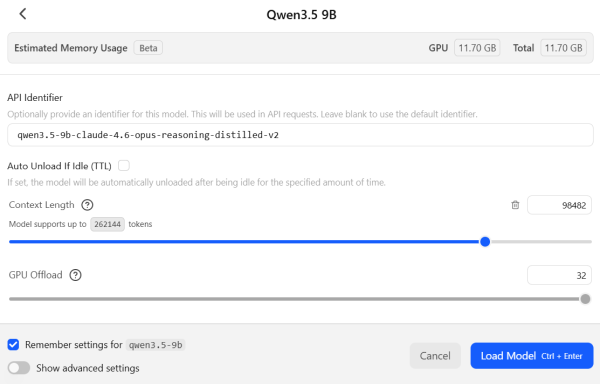
The main challenge I had was to find a model that I could fully load into the RAM of my graphic card and have enough space left to increase the context length. Only when these two things work simultaneously do we have a chance to get fast enough answers.
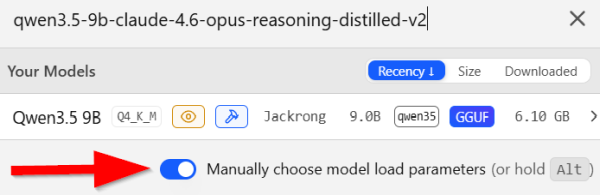
On my machine that is true for the Jackrong/Qwen3.5-9B-Claude-4.6-Opus-Reasoning-Distilled-v2-GGUF model. Try to load this model to follow along and next week we look at some more models.
In LM Studio, we can activate the option to manually choose the model load parameters when we load a model:
This gives us a minimalistic dialog that allows us to increase the context length from the default value of 4096 to something much larger:
Use Claude Code with the local LLM
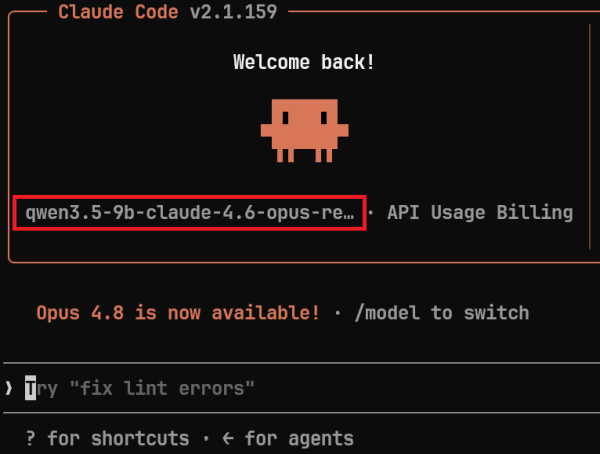
With the model running inside a compatible host, we can finally configure Claude Code to use our local model. For that we need to set 2 environment variables and use the model selector when we start Claude Code:
This should give us the familiar Claude Code screen, but this time it should show our model and not the ones from Anthropic:
Test the functionality
We can now use Claude Code as we usually do but be aware that we are not yet connected to the LLM and everything could still break. To prevent that, let us run this minimal prompt to see if all the parts we have work together:
create a file called test_tools.txt with "hello world".
This should create a file named test_tools.txt with the content "hello world". When everything works as we hoped for, this should take only a few seconds. If it fails, we need to read the error message and go back to the LLM host and adjust our parameters. The same is true if this action takes multiple minutes. In this case we need to reduce the context size or change the model. Then if writing this little amount of text takes minutes, it is going to be a pain when we try to write code.
If our first prompt worked fast, I like to take a little larger chunk and run the prompt I used in my first post on Claude Code to create a global NuGet package:
I need a NuGet package that I can install as a global tool. The tool should be named say_no. When we run it, it should pick one of 20 predefined extensive reasons that basically say no but uses a lot more words in the context of software development. Crate the tool, show the commands to create the package and install it on the local machine.
In March, this took less than two minutes, and I had a working NuGet package. With our local LLM we may not get it this fast, but the result should still be comparable to the one I got in the post.
On my first attempt I got a working result after 6 minutes. It was not as polished as the one I got with the Opus model, but it was working code that produced a NuGet package. With other models and machines, I got the full range between 90 seconds and 30 minutes. Sometimes functional, sometimes a non-compiling mess. That is the hard part that I mentioned before: finding the right combination of model, context size and machine.
Next
With this basic setup in place, we can start doing more interesting work and find the limits of the model. It will take time to find a good balance between model, context size and speed. Next week we continue with part two and a detailed list of results I got when I tested Claude Code with a handful of models on different machines.