How to Fix the Context Menu of Windows 11
With Windows 11 came a new context menu in the file explorer. What before was a one click action, now takes us two steps:
- We right-click on the file to open the first context menu:
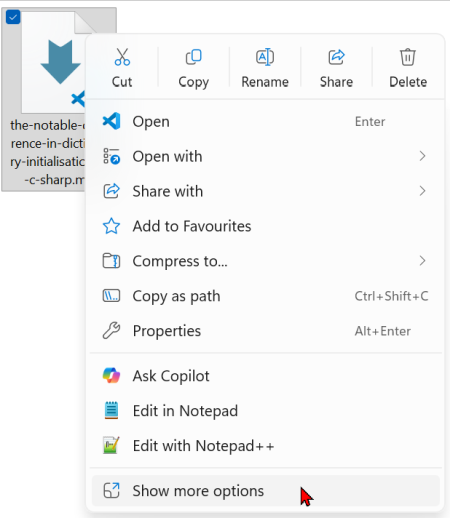
- Now we need to click on "Show more options" to get the Windows 10 context menu:
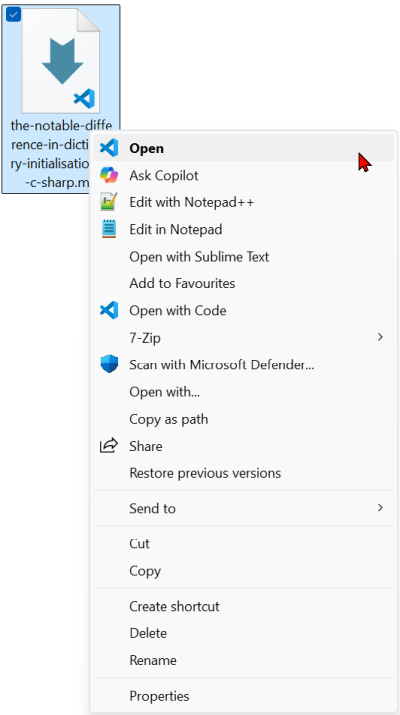
So far, I accepted this extra step as the price to get all the other Windows 11 benefits. But as it turns out, this is unnecessary. We can get the old context menu back with a single entry in the registry.
Open a terminal window with administrator privileges and add this single line:
Restart the computer or at least the file explorer to see the improvement.
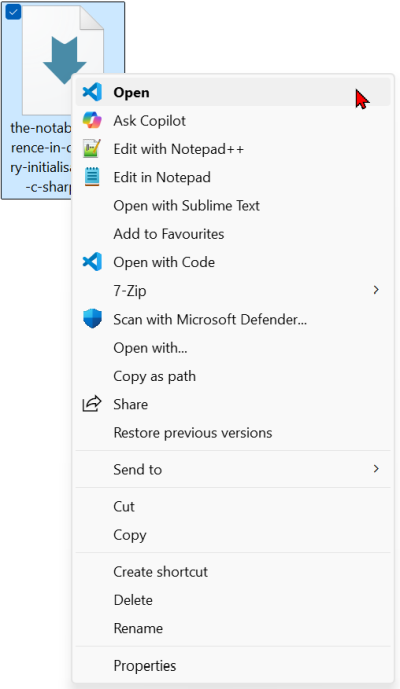
When you now use the context menu in the file explorer, you are back at the extended menu we know from Windows 10 without the extra step:
It is a bit disappointing that Microsoft hides this in a registry key and did not fix the context menu in all this time since launching Windows 11.