Change the SSL Certificate of the Octopus Deploy Server
Renewing SSL certificates for applications we deploy with Octopus Deploy is a straightforward task. We can go to the certificate store, replace the old certificate with the new one and the next time we deploy the certificate is on the server. If we need to update the certificate for Octopus Deploy itself, we need to go through more hoops that are not as clear. Let us see what we need to do.
First, connect to the server with a remote desktop session and start the Octopus Manager application:

In the section Octopus Web Portal we can see all the bindings for the server. The last point in the list allows us to change the bindings:

We need to find the binding that has the URL in it that we use to access the Octopus Deploy server. Select this binding and remove it.
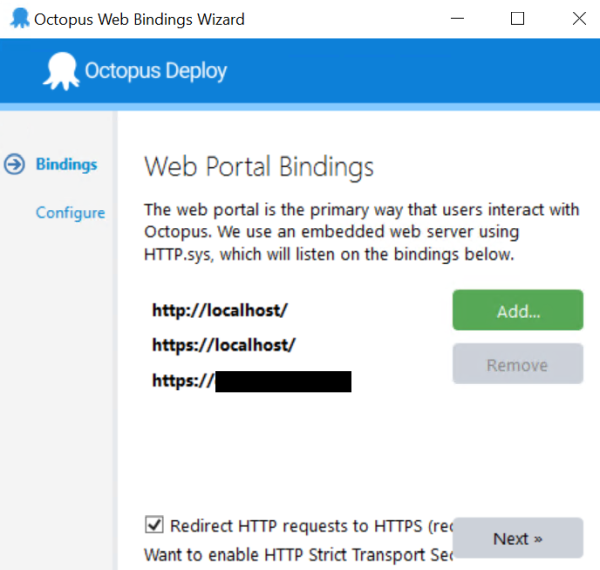
Now we can create a new binding, add the same URL and select our new certificate:
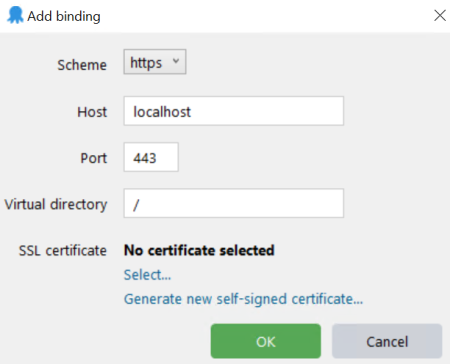
We can use OK to submit the form and then use the Next button to finish the tiny wizard to modify bindings.
Should our new certificate not show up, we go back to the first screen and use the restart command in the Octopus Windows Service section. After a quick restart we should finally see the new certificate.