Fix the Missing NuGet Packages Folder in Azure DevOps
As I was refactoring a .Net project, I run into an annoying little problem that cost me a lot of time. While I could compile the project on my developer machine, it failed with this error on Azure DevOps:
[error]...: Error : This project references NuGet package(s) that are missing on this computer. Use NuGet Package Restore to download them. For more information, see http://go.microsoft.com/fwlink/?LinkID=322105. The missing file is packages\SkiaSharp.NativeAssets.macOS.3.119.0\build\net462\SkiaSharp.NativeAssets.macOS.targets.
Luckily for me, we use a local build agent what allowed me to check the agent directory on the server. The package folder was not next to the *.sln file, it was in the top folder of the agent working directory:
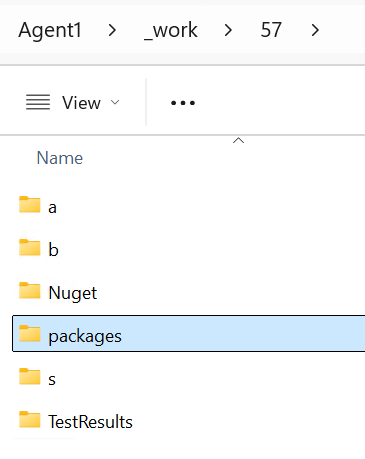
How did the package folder end up in this location? There was a NuGet.config file but changing the location there did not have any impact. It took me a while to figure out that we can override the package folder location as part of the NuGet restore task. If we check the Advanced section, we can see the problem:

After removing this setting, I could finally build the project on Azure DevOps.
Should you end up with missing NuGet packages on Azure DevOps, first check the Advanced section of the NuGet restore task. It may save you a lot of debugging time.